



Cellswitch Nano Accentronix ACCCN
CELLSWITCH NANO (LTE/4G)
- Bluetooth for Access Control when mobile networks are down
- Fast and reliable LTE/4G and WiFi for connectivity
- Link and manage all ET NICE remotes from the cloud with built-in receiver
- Effortlessly monitor and manage residents, visitors OTP’s, remotes and tags
- Advanced electric fence keypad interface
- Integrated High-Gain Antenna for superior LTE/4G connection
- 2 Inputs and 2 Outputs
- Includes a 1-year free subscription, activated SIM card, data, and premium features for 12 months**
- Cellswitch Nano: 10 users , remotes and tags
- **The benefit of the Nano is its compact size and superior LTE/4G connection due to its internal High Gain antenna.
The Cellswitch Nano has all the features of the Cellswitch Infinity except that is can only use a NICE Wireless O2 keypad i.e. an Accentronix Wired keypad can NOT be connected to this device
- Description
- Information
- Access Control
- Electric Fence Monitoring
- Remotes
- Google Home
- Technical Specs
- Brochure
- User Manual
Description
CELLSWITCH NANO (LTE/4G)
- Bluetooth for Access Control when mobile networks are down
- Fast and reliable LTE/4G and WiFi for connectivity
- Link and manage all ET NICE remotes from the cloud with built-in receiver
- Effortlessly monitor and manage residents, visitors OTP’s, remotes and tags
- Advanced electric fence keypad interface
- Integrated High-Gain Antenna for superior LTE/4G connection
- 2 Inputs and 2 Outputs
- Includes a 1-year free subscription, activated SIM card, data, and premium features for 12 months**
- Cellswitch Nano: 10 users , remotes and tags
- **The benefit of the Nano is its compact size and superior LTE/4G connection due to its internal High Gain antenna.
The Cellswitch Nano has all the features of the Cellswitch Infinity except that is can only use a NICE Wireless O2 keypad i.e. an Accentronix Wired keypad can NOT be connected to this device
Information
| Brand | ACCENTRONIX |
|---|---|
| Color | Blue |
Access Control
- Tailored for gates and garage doors inside estates.
- Effortlessly manage and monitor access control of up to 10 people.
- Feature-rich, easy to use the website.
- Restricted remotes access for domestic, gardening and security services.
- Get notified when the security company accesses your property.
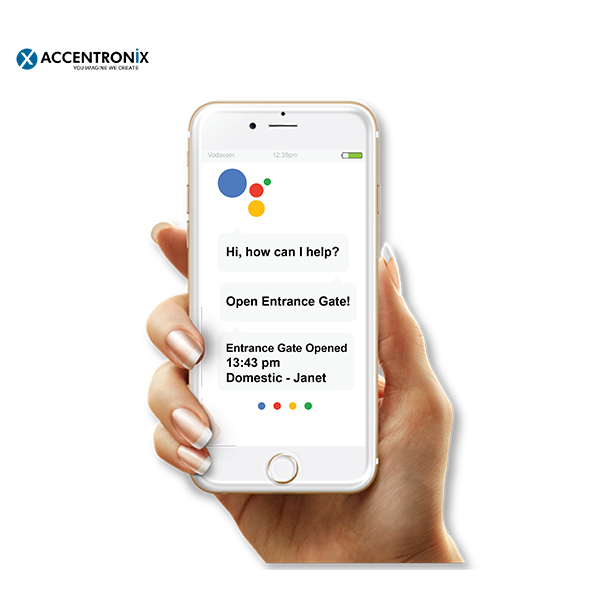
- Integrated with Google Assistant and Google Home.
- Missed-call access control.
- Free welcome SMS’s.
- Unlimited access control push notifications with SMS backup – including unauthorized attempts.
- Monitor gate and garage status, battery voltage, and power failures.
- Complete Log Reports.
Electric Fence Monitoring
- Know exactly what is going on with your electric fence at all times.
- Seamlessly connects directly to your electric fence keypad-data connection.
- Advanced integration with all the popular Energizer brands and models.
- Control, program and monitor fence health, voltages* and Alarms.
*Fence voltages info is available on certain models only.
Remotes
- Link and manage any ET remote from the cloud.
- Used together with ET (Accentronix) Cloud-Link receiver.
- Restrict access for remotes to only work on certain days during specific times.
- Lost remotes can be deactivated with a single click.
- Complete logs of ownership and usage of remotes.
- Bulk learn remotes off-site.
Google Home
Automatically links with your Google Assistant and Google Home on your phone!
- “Hey Google, Open the Gate.”
- “Hey Google, is my Garage door closed?”
- “Hey Google, turn the security lights on.”
- “Hey Google, is the Electric Fence switched on?”
- Click here to get Accentronix Smart Home for your Google Assistant
- Click here to find out how easy it is to use Google Assistant
Setup for Android and Apple iPhone
Step 1: Click one of the links below to install and open Google Home
Android Apple iPhone
Step 2: Click on Add -> Set up device -> Works with Google.
Step 3: Select ‘Accentronix Smart Home’ and follow instructions.
Step 4: Go to Google Home’s main screen to see the devices you can control.
Step 5: Select a device from the list and give it a friendly name like ‘Entrance Gate’ or ‘Electric Fence’
Step 6: Press and hold your phone’s home button to open Google Assistant. On an iPhone you need to open the Google Home app.
Step 7: Say “Open entrance gate” or “Is the electric fence turned on? ”
Step 8: If prompted for a password, say “1 2 3 4”
Hint: You can set your Google Assistant to listen and activate when you say “Hey Google” without even having to unlock your phone! “Hey Google, open the Entrance Gate”
Technical Specs
- Activated Vodacom or MTN sim card.
- 12Vdc to 24Vdc @ 100mA.
- 2 inputs and 2 outputs.
- Energizer keypad data interface.
- E.T. NICE Cloud Link receiver interface.
- Integrated antenna.


